🛰 Request
In this section we will finally get images with detected deforestation.
Required arguments and parameters
You need to always specify location of folder where you want to save output images:
fguard request ... "<path/to/output/folder>"
While saving images to an output folder it removes ALL DATA in that folder (for guaranteed output images).
Also coordinates, time, detector are required:
fguard request ... --coordinates c1 c2 c3 c4 --time from-date to-date ...
Where c1, c2, c3 and c4 are WGS84 coordinates of the area:
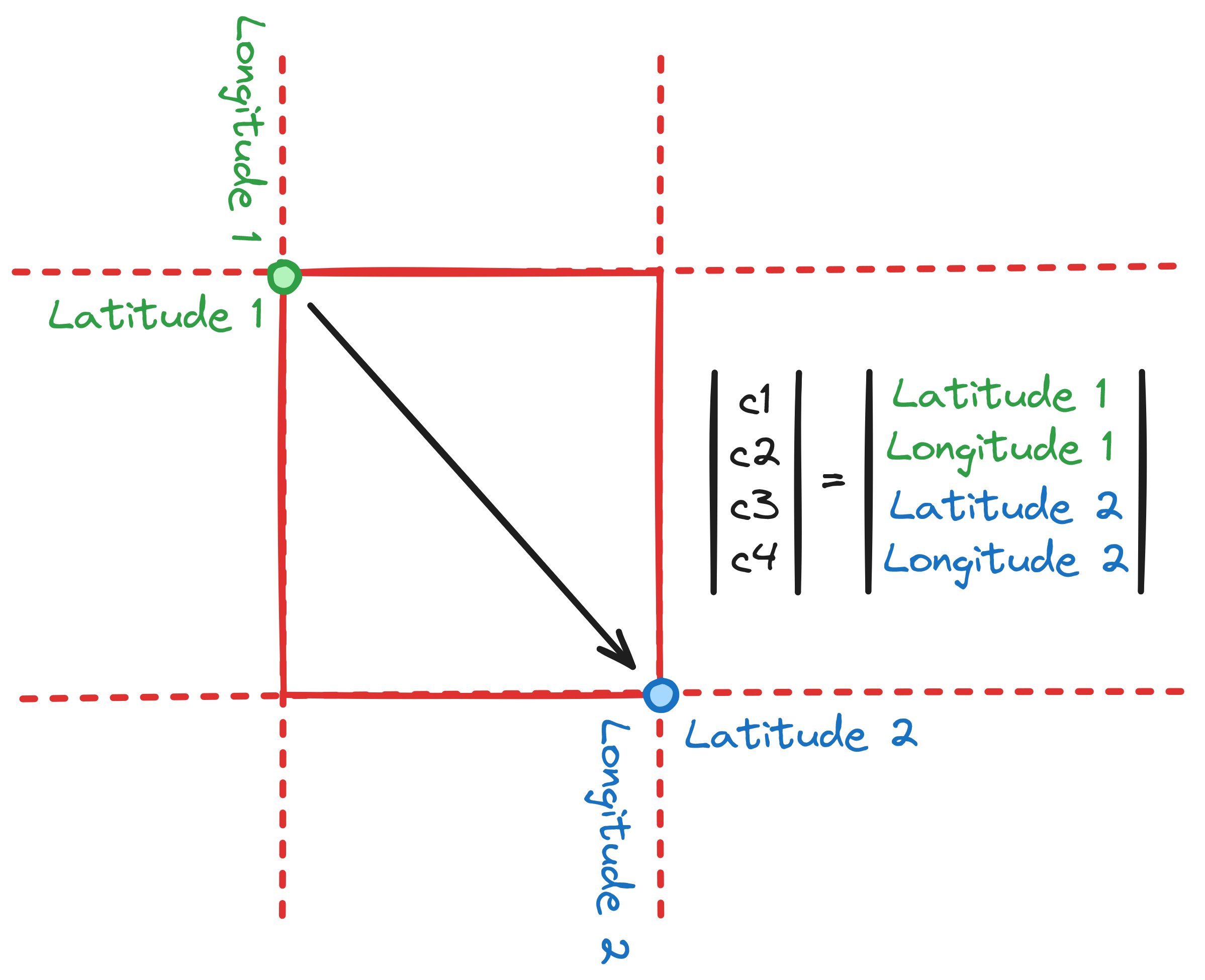
We recommend getting coordinates from this map.
Where from-date and to-date are boundaries of the time period in dot format YYYY.MM.DD (inclusive).
Note that app finds images only in winter season.
For example:
fguard request ... --coordinates 95.1 95.2 96.1 96.3 --time 2023.02.12 2023.06.01 "./output"
This command will detect deforestation on all winter days from February 12 to June 1 of 2023 year on the corresponding area and save images to ./output folder.
You will get something like this (single image of the output group):
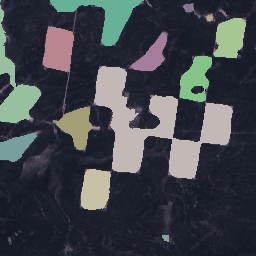
Don't worry about your processing units! Our app caches data.
Additional parameters
Deforestation detector
fguard uses neural networks to detect deforestation by default, but you can specify what algorithm to execute:
fguard request ... --detector "<DETECTOR>" ...
Where <DETECTOR> can be:
net(default) -> detect using U-Net (convolutional neural network).cluster-> detect using K-Means clustering.
To use net detector you need to download pretrained model using this command:
fguard net --update
You can also use this to update local model (it is still in training).
Separate real images and masks
By default fguard saves masks over real images. To separate them, use --isolate flag:
fguard request ... --isolate ...
Size
App download images in 256x256 shape but you can also change it:
fguard request ... --size width height ...
Using settings file
It can be useful because you can store config and request data in the same place without need to specify coordinates, time periods, etc. every time.
If you didn't create settings.toml file in the Configuration part, do it and write all same required or additional parameters that were in previous part, for example:
[request]
coordinates = [ 95.1, 95.2, 96.1, 96.3 ]
time = [ "2023.02.12", "2023.06.01" ]
detector = "cluster"
size = [ 300, 200 ]
If you wrote ID and TOKEN too, it will look like this:
[config]
id = "<ID>"
token = "<TOKEN>"
[request]
coordinates = [ 95.1, 95.2, 96.1, 96.3 ]
time = [ "2023.02.12", "2023.06.01" ]
detector = "cluster"
size = [ 300, 200 ]
After that run:
fguard request ... --file "<path/to/settings.toml>" "./output"
Don't forget to specify output folder. And optionally others flags too.
You can also use parameters while using settings file, it will overrides file parameters, for example, if you set detector in settings.toml to "cluster":
fguard request ... --detector "net" ...
It will use "net" detector, not "cluster".